ui engineering
Chrome DevTools adds a visual editor for CSS position-area
Chrome DevTools now offers a visual position-area editor, helping teams choose and inspect anchor-positioning regions while keeping the resulting CSS declaration reviewable.
Published 2026-10-21

A positioned popover is easy to understand when it sits in one of a few obvious places. It becomes harder to reason about when an interface has several possible anchor regions, responsive changes, or a declaration whose logical axes are not immediately visible. Chrome DevTools now adds a visual editor for CSS position-area, turning that spatial decision into something authors can inspect and adjust directly in the Elements panel. The capability appears in Chrome for Developers’ October 20 DevTools recap, which covers features arriving after Chrome 155 and Chrome 156 reached stable.

What the editor changes
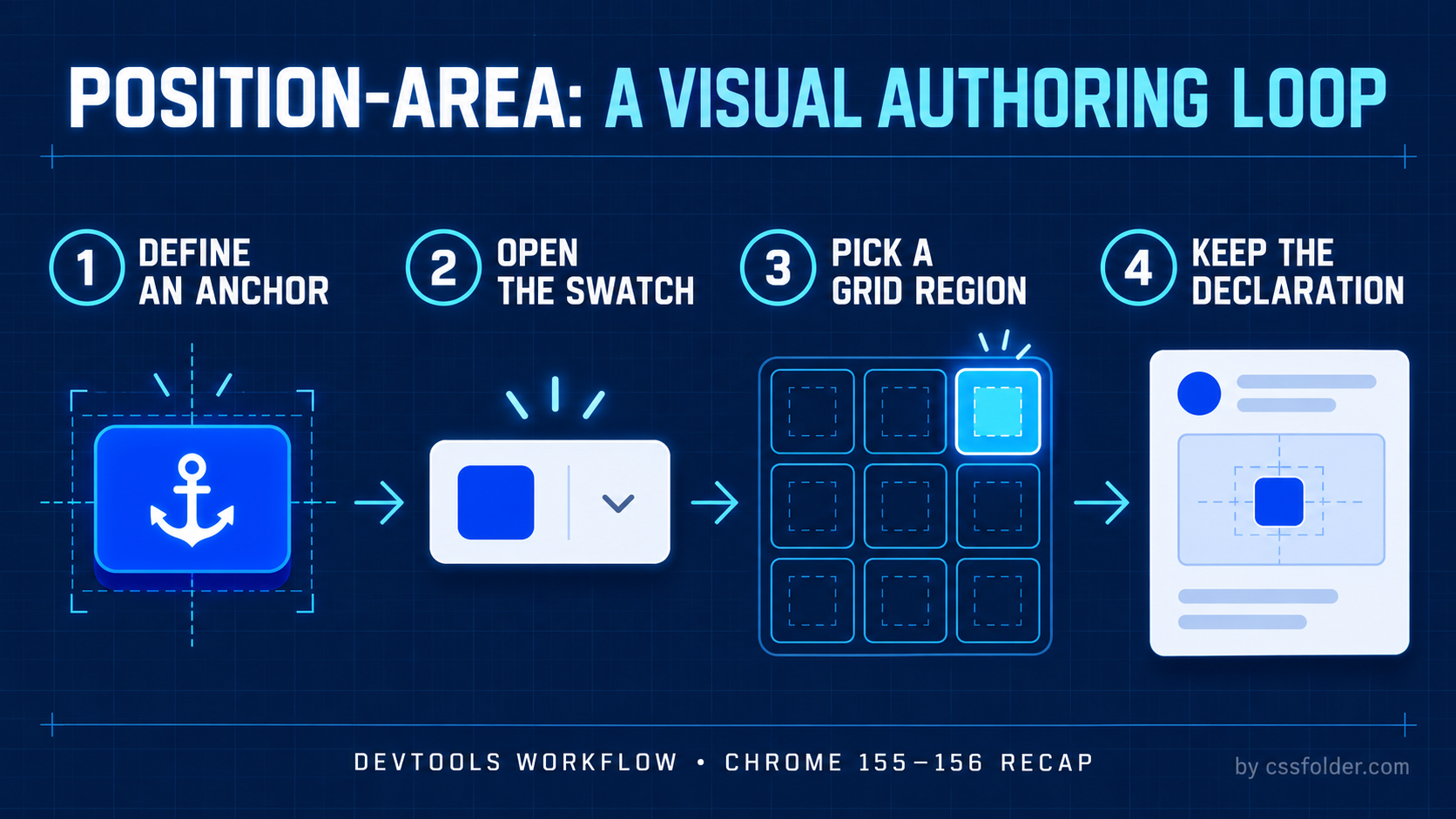
CSS anchor positioning lets one element use another element as a reference. The position-area property describes where the positioned element should sit in the anchor’s grid of regions. Instead of treating that choice only as a sequence of keywords, the new DevTools control exposes a swatch beside a position-area declaration in the Styles pane. Selecting the swatch opens a visual grid, where a developer can choose a region and see the relationship in context.
Chrome’s release note says the editor can configure axes together or independently, toggle the self keyword, and shorten axis-less keywords. Those are authoring aids rather than a new CSS syntax: the end result is still a declaration in the stylesheet. That distinction matters. The editor can make an unfamiliar placement easier to discover, but the code remains the portable explanation your team reviews, tests, and maintains.
A practical overlay workflow
Start with a small component you can view in a real layout: for example, a help bubble anchored to an icon or a utility panel anchored to a trigger. Give the reference element an anchor name, then connect the floating element to it using the usual anchor-positioning setup. Once a position-area declaration is present, inspect the floating element in Elements and use the inline swatch in Styles to open the editor.
.trigger { anchor-name: --help; }
.tip { position: absolute; position-anchor: --help; position-area: block-end span-inline-end; }
The exact declaration will depend on the component and the writing mode, so treat the code as a shape of the workflow rather than a required recipe. Use the grid to try the intended region, then read the declaration DevTools leaves behind. If the result is clear to a teammate without the visual control open, you have a useful stopping point. If it is not, use explicit logical keywords and a short component comment rather than relying on the inspector as the only documentation.
Why visual authoring helps
Anchor-positioning terms encode two relationships at once: an area around the anchor and the direction in which the positioned box occupies it. A visual grid reduces the translation work while you are exploring. It is especially helpful when a component looks correct at one width but needs a different relationship when its anchor nears an edge. You can use the control to confirm what a proposed area means before you turn that experiment into a deliberate responsive rule.
The same DevTools recap also mentions implicit-anchor selection on popover adorners and an anchor-positioning box overlay. Those tools complement the editor: one helps identify which anchor matters, another makes the relevant geometry inspectable, and the position-area control selects the intended region. For UI work, that is a more coherent loop than guessing a keyword, refreshing, and trying another one.
Keep the compatibility boundary explicit
This announcement is about Chrome DevTools, not a claim that every browser exposes the same inspection UI or supports every anchor-positioning detail in the same way. Check the browser targets for your product and keep a functional fallback when the interaction needs one. A conventional in-flow layout, a non-enhanced popover position, or a small progressive rule can be a better baseline than shipping an overlay that only works under one set of feature assumptions.
For teams already experimenting with anchor positioning, the best first use is narrow: open an existing overlay, select the position-area swatch, compare a few grid regions, and commit the readable declaration you mean to support. The new editor makes that decision less opaque. It does not remove the need to test clipping, zoom, writing modes, keyboard flow, and the viewports where floating UI is most likely to surprise users.