ui engineering
A DevTools triage loop for interface regressions
Chrome’s latest DevTools recap points to a practical workflow for connecting component inspection, soft-navigation traces, and evidence handoff.
Published 2026-09-30
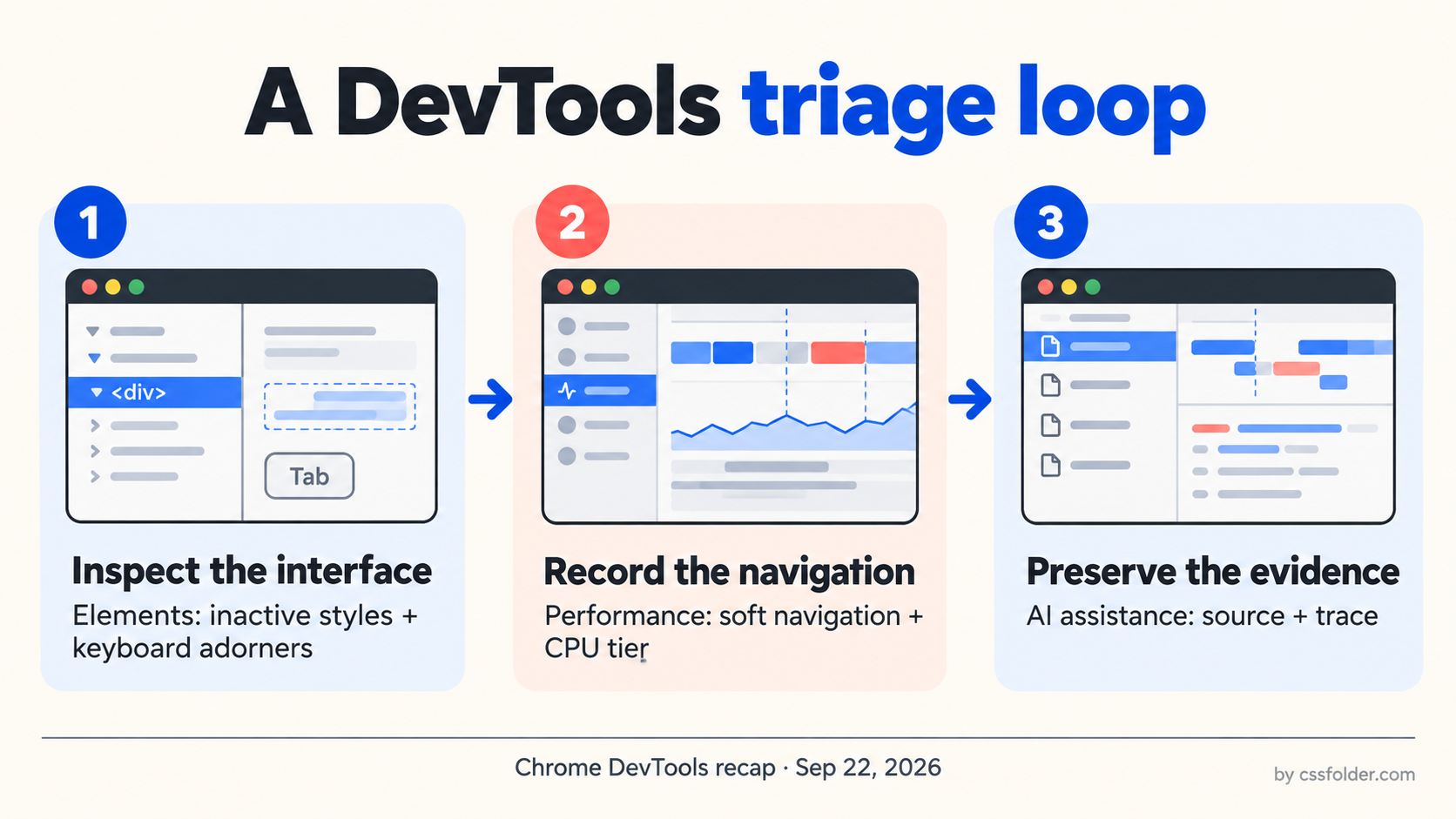
A regression in an interface can feel deceptively small: a control loses its intended style, a client-side route changes the page more abruptly than expected, or a bug report lacks enough evidence to reproduce. Chrome’s September DevTools recap points to a useful way of connecting those investigations. Its new Elements, Performance, and AI-assistance capabilities are not one feature, but they can form a tighter debugging loop: inspect the component, capture the navigation that changes it, and retain the source and trace evidence for the next person. This is a Chrome DevTools workflow, not a cross-browser support claim.
Start where the interface is wrong
The Elements panel changes in the recap are practical for design-system work. Inactive-style support can make it easier to see declarations that are present but are not currently taking effect. That shifts a common question from “where did this rule go?” to “why is this rule inactive here?” The same release also calls out keyboard-accessible adorners. Together, those details are a reminder to inspect the page as an interactive system, not just a screenshot: the cascade, the active state, and keyboard access can all explain why a component behaves differently from its intended design.
Use this as the first pass, not as a reason to edit production CSS blindly in the panel. Isolate the specific component, reproduce the state that looks wrong, and identify which declaration or condition is deciding the outcome. A small written observation — selector, state, and expected result — gives the later trace a useful question to answer.
Record the navigation that produced it
The recap also highlights full soft-navigation support in Performance. Soft navigations matter because many modern applications replace meaningful portions of a page without a full document load. If the visual issue appears after an in-app transition, recording only the initial page load can miss the moment that matters. Capture the interaction that changes the route or view, then review the resulting trace alongside the component state you found in Elements.
Chrome also mentions CPU performance-tier overrides. Treat that capability as a controlled comparison aid, not a score generator. A constrained tier can help a team see whether a transition stays understandable when work takes longer, but it does not substitute for testing on real target devices or for user data. Keep the question narrow: does the navigation create an avoidable burst of work, delayed feedback, or a layout change that makes the component harder to use?
Preserve evidence instead of recreating it
The final part of the loop is handoff. The September recap says AI assistance can inspect sources and record performance traces. Whether a teammate, an issue tracker, or an assistant receives the result, the durable asset is the evidence: the component and state you inspected, the exact interaction that triggered the navigation, and the trace or source reference that supports the diagnosis. That makes the investigation reviewable without asking someone else to reconstruct it from a vague report.
This matters especially when a bug crosses design and engineering boundaries. A designer may notice a perceived jump; a frontend engineer may need the cascade and trace; a reviewer may need to know whether the change was intentional. A compact record lets each person examine the relevant layer without inventing a benchmark or overstating a causal conclusion.
A repeatable triage routine
When an interface changes unexpectedly, begin with the smallest reproducible path. Inspect the affected element and its active or inactive styles. Trigger the in-app transition while recording the Performance panel if the issue follows a soft navigation. Use a CPU-tier comparison only to explore that specific condition, then retain the relevant source and trace context. Finish by documenting what was observed, what remains uncertain, and the next test. This keeps implementation work and visual review connected without turning DevTools features into a promise of automatic diagnosis.
The useful change here is not that debugging becomes effortless. It is that several tools now line up around the same practical sequence. For teams maintaining components across fast client-side navigation, that sequence can make reports clearer, traces more relevant, and follow-up decisions easier to review.
Primary source
Chrome for Developers, “New in DevTools - October 2026,” published September 22, 2026: https://developer.chrome.com/blog/new-in-devtools-october-2026